Transcript
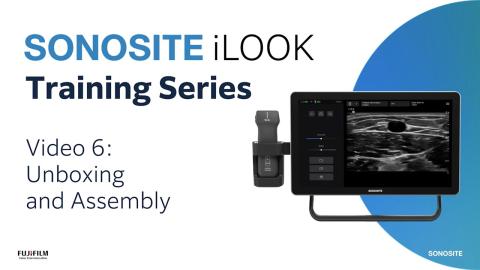
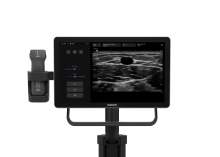
- [Narrator] Welcome to the Sonosite iLOOK,
designed for vascular access.
In this educational video,
we'll be covering configuring the system.
To power on the system,
press the power button located
on the back of the touch display.
When starting the system for the first time,
follow the startup wizard to configure basic settings.
Tap start setup to begin configuring your system.
Create an administrator account by choosing a username
and a password with at least eight characters.
As an administrator, you can manage users, set passwords,
and configure system settings.
Next, is connecting to a wireless network.
A wireless connection is necessary to connect
to an LDAP server, enable DICOM,
and perform remote software updates.
If you would like to connect to a wireless network,
tap add to search for networks.
Select network.
Enter profile name, network name,
security policy, authentication type, and password.
If your network requires a security certificate,
import it now from a USB device.
If you do not have the relevant information needed
to connect to a wireless network,
you can skip this step
and connect at a later time.
Refer to the user guide
for additional wireless network instructions.
Set the system date and time,
either manually or automatically,
and select your time zone and preferred format.
Enter your institution and department information.
Select between two system modes.
Secure mode, the default setting, requires all users
to log into the system
and enables user management by an administrator,
including support of a directory server.
Secure mode will automatically lead
to LDAP setup on the next page,
which can also be set up later.
User profiles can be added,
even if not using LDAP server-based user accounts.
Be mindful that in secure mode,
user login is needed at every boot
and after waking the system from sleep mode.
To switch from secure mode
to non-secure mode following selection,
a factory reset will be needed.
Non-secure mode allows any user
to access all system functions,
except administrative settings, without logging in.
If you select non-secure mode, the setup wizard skips
to system portal configuration
and no login is required at each boot or wake.
Choose the mode that best fits your security needs.
Continue to the next screen to enable the system portal,
which requires a wireless network connection.
Once connected to system portal,
the system will allow software notifications,
download, and installation to occur over the air.
This can be set up later if needed.
On the final screen of the setup wizard,
the system prompts you
to select a sleep delay setting from the dropdown menu.
Select your preferred sleep delay setting
to conserve power when the system is idle.
Tap finish.
If any of the above are skipped
during initial setup, you can complete
or adjust the settings at a later time
in the administrative options.
Now that the initial configuration setup is complete,
it's time to connect your L15-5 wireless transducer.
The wireless L15-5 transducer connects
to the Sonosite iLOOK system through a Wi-Fi connection
and must be registered to the system's database
when used for the first time.
To register the transducer, tap the system menu icon
to open the transducer settings menu.
To learn more transducer registration details,
see the video Sonosite iLOOK L15-5 Wireless Transducer.
Once the registration process is complete,
the system will auto connect
to the transducer each time the user initiates scanning
when both the system and transducer are turned on.
It is recommended to leave the transducer
always powered on to minimize connection time.
Your Sonosite iLOOK system is now ready to use.
Thank you for watching.
Watch more Sonosite iLOOK how-to videos online and refer
to the system user guide on Sonosite.com.
システムの設定
Sonosite iLOOKのご紹介 ― 血管アクセス専用に設計された製品です:
- 軽量なワイヤレストランスデューサー
- 一体型充電ドック
- 柔軟な取り付けオプション
余計な機能や煩わしさは一切ありません。あなたと、その処置、そして患者様だけに集中できます。